As this has changed a lot from earlier versions, this still puts people off. It definitely is a more organized way, in case you have different report access permissions for different people. More than anything, if you maintain the Alternate Report ID's well, anybody going in to provide support knows where to go immediately.
Here are the steps -
To set access to alternate/modified forms and reports:
1. Open the Alternate/Modified Forms and Reports window.
(Microsoft Dynamics GP menu >> Tools >> Setup >> System >> Alternate/Modified Forms and Reports)

2. Enter an ID and description.

3. Select a product from the Product list.
(If you’re using integrating products with Microsoft Dynamics GP, they are displayed in the list in addition to Microsoft Dynamics GP.)
4. In the Type list, select the type of item you want to set access for.
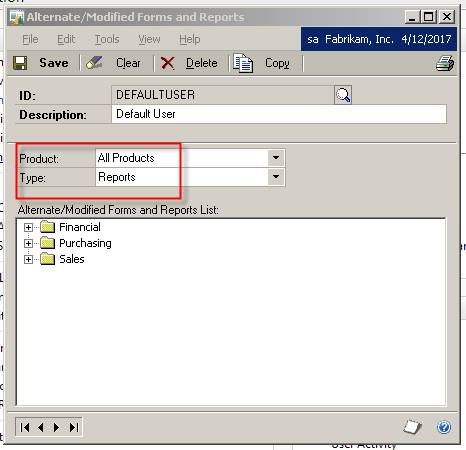
5. In the Alternate/Modified Forms and Report list, a tree view is displayed if there are any alternate/modified forms and reports for the product and type that you selected. The tree view is organized by series.
o Expand a series to display a list of the forms or reports that are available as alternate/modified forms or reports.
o By default, the original forms or reports are selected already. If you want users to be able to access the alternate version of that form or report, select the alternate form or report.

6. Repeat steps 3 through 5 to set access to alternate/modified forms and reports for all products.
7. Choose Save.


2 comments:
yeah kya bachoon wali post hay. :P
elmo
Jivtesh - thanks for the clear instructions, but in my case there was another element which was not included in your description.
After talking to MS support, the missing element was determining which security role is associated with alternate/modified forms and reports. That's located here: Microsoft Dynamics GP menu >> Tools >> Setup >> System >> User Security; on that screen there's an "Alternate/Modified Forms and Reports ID" dropdown which identifies the security role for a particular user and company. In my case, it was set to a strange role for some users. I'd been going directly to the location you suggested and setting it for the security role that seemed appropriate but nothing was changing. The solution was to change the security role in the above-mentioned screen and then all was well.
The MS support person said he recommends going to the user security setup screen, choosing the user/company from there, and then clicking on the "Alternate/Modified Forms and Reports ID" link - this prepopulates the screen you described with the security role associated with the user you're configuring (and if that role is not an appropriate one, you can change it here and then proceed).
Thanks again!
-- John
Post a Comment